

Navigating Your Travels with Google Translate and Google Maps
Google Translate: Breaking Down Language Barriers
Offline Languages
Google Translate allows you to download languages for offline use, making it possible to translate text without an internet connection. This is particularly useful in remote areas where connectivity may be limited.
- Example: Imagine you're in a rural village in Japan, far from any Wi-Fi or cellular network. With offline Japanese downloaded you can still communicate with locals, read signs, and understand menus. The ability to translate text on the spot can make your interactions smoother and more meaningful, enhancing your travel experience.
Photo Translation
Google Translate's camera feature lets you translate text from images. Just point your camera at the text, and the app will translate it in real-time.
- Example: You're in a French bakery and can't decipher the menu. Simply take a photo of the menu with Google Translate, and you'll instantly see the English translation. This feature can be a lifesaver when dealing with complex or unfamiliar scripts, ensuring you always know what you’re ordering or reading.
Translate Voice
While in Spain, you meet a local who doesn’t speak English. Using Google Translate’s voice feature, you say, “Where is the nearest train station?” and the app instantly translates and speaks the Spanish equivalent: "¿Dónde está la estación de tren más cercana?" The local understands and provides directions, which you can then translate back into English to follow easily.
Other Useful Translation Apps
Microsoft Translator
- Supports over 60 languages.
- Offers text, voice, and image translation.
- Features a multi-person conversation mode for group chats in different languages.
iTranslate
- Provides text and voice translations in over 100 languages.
- Includes offline mode and a phrasebook.
- Offers a pro version with camera translation and verb conjugations.
SayHi
- Focuses on voice translation.
- Supports conversation mode in 90 languages and dialects.
- Allows you to adjust the speed of the translated speech.
Papago
- Specialized in Asian languages.
- Offers text, voice, and image translation.
- Includes offline translation for Korean, English, Japanese, and more.
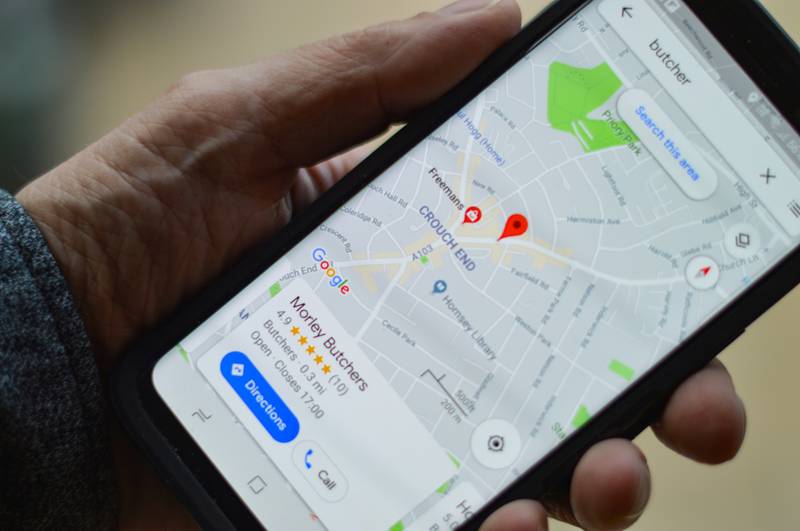
Google Maps: Navigating with Ease
Offline Maps
Google Maps allows you to download maps for offline use, enabling you to navigate without an internet connection. This feature is invaluable when exploring areas with poor connectivity.
- Example: You're hiking in the Swiss Alps and lose signal. With offline maps downloaded, you can still find your way back to your hotel or discover new trails without any issues. This ensures that you stay on track and safe, even in remote locations.
Local Business Information
Even offline, Google Maps provides information about local businesses, including hours of operation, contact details, and reviews.
- Example: You're in Bangkok and want to find a nearby restaurant. With offline maps, you can access detailed information about local dining options, ensuring you find the perfect spot to eat. This can help you avoid tourist traps and discover hidden gems recommended by other travelers.
How to Download Google Maps Offline for Hassle-Free Navigation
- Open Google Maps App: Ensure you have the latest version of the Google Maps app installed on your device. Open the app to get started.
- Search for the Area: In the search bar, type the name of the city or area you want to download. For example, if you’re traveling to Paris, type “Paris” and hit enter.
- Select the Location: Once the location appears, tap on the name or address at the bottom of the screen to bring up more details about the place.
- Download the Map: In the location details, look for the “Download” button. If it’s not immediately visible, tap on the three dots in the upper-right corner of the screen and select “Download offline map” from the menu.
- Adjust the Area: Google Maps will show a rectangular area that will be downloaded. You can zoom in or out to adjust the area to include more or less of the surrounding region. Note that larger areas will take up more storage space on your device.
- Confirm the Download: After adjusting the area, tap the “Download” button. The app will begin downloading the map for offline use. This process may take a few minutes, depending on the size of the area and your internet speed.
- Accessing Offline Maps: Once the map is downloaded, you can access it by tapping on your profile picture or initial in the top-right corner of the app, then selecting “Offline maps.” Here, you’ll see all the areas you’ve downloaded.
- Using Offline Maps: When you’re in an area with no internet connection, Google Maps will automatically switch to offline mode, allowing you to navigate using the downloaded maps. You can search for locations, get directions, and use navigation features just like you would online.

Other Helpful Travel Apps
TripIt
TripIt organizes all your travel plans in one place. Forward your flight, hotel, and car rental confirmations to TripIt, and it will create a detailed itinerary for you.
- Example: You're juggling multiple flights and hotel reservations. TripIt consolidates all your information, making it easy to keep track of your travel plans. This streamlines your travel experience, ensuring you always have your itinerary at your fingertips.
Rome2rio
Rome2rio provides detailed information on how to get from one place to another, including flights, trains, buses, ferries, and driving routes.
- Example: You're in Berlin and want to visit Prague. Rome2rio shows you all the travel options, complete with prices and travel times, helping you choose the best route. This can save you time and money by comparing various transportation methods in one place.
PackPoint
PackPoint creates a customized packing list based on your destination, the length of your stay, and the activities you have planned.
- Example: You're heading to Costa Rica for a week of adventure sports. PackPoint ensures you pack all the essentials, from hiking boots to swimwear, based on the expected weather and activities. This app takes the stress out of packing by making sure you have everything you need.
XE Currency
XE Currency provides live exchange rates and allows you to convert currencies on the go, even without internet access.
- Example: You're shopping in Istanbul and want to know the cost of an item in your home currency. XE Currency helps you make quick conversions to ensure you're getting a good deal. This helps you manage your travel budget effectively and avoid overspending.
#TravelApps #GoogleTranslate #GoogleMaps #TravelTips #TravelSmart #OfflineMaps #LanguageTranslation #TravelTech #Wanderlust #ExploreMore
By leveraging these powerful tools and apps, you can navigate language barriers, find your way in unfamiliar places, and manage your travel plans with ease, making your travel experience more enjoyable and stress-free.